|
To use the wireless
network (called Kongu_wifi) you will need:
- a computer with a wireless card
- to be in range of a wireless hotspot.
Wireless is available in all Hostel buildings, including the Bus shed
and Fruits Stall.
You must do these steps
first:
- Find the MAC address of the wireless card in
your computer
Instructions for configuring your computer will
vary depending on your operating system
Users of the
wireless service in public areas are asked to be aware of the potential
hazard caused by laptop power leads. Care should be taken that these do
not trail across walkways.
You will need to
have administrator privileges on your computer to set up
- Make sure you have installed Windows XP
Service Pack 2
- Go to Start and Control Panel and
Network Connections
- Right click on the wireless connection icon
and select Properties
- In the Wireless Network Connection Properties
window select the Wireless Networks tab
- Under Preferred networks click
Add

- In the Wireless network properties
window make sure you have clicked on the Association tab.
If you
do not have the correct tabs you will need to start the Wireless Zero
Configuration service
- Set the Network name (SSID) as
Kongu_wifi
(all in lower-case and must be spelt correctly)
- Set the Network Authentication as
WPA
-
Select
TKIP as
Data encryption
method

- Click on the Authentication tab
- Choose Protected EAP (PEAP) as the
EAP type
- Untick all other boxes in this window
- Click on Properties

- Protected EAP Properties
- Untick the Validate server certificate
check box
- Under Select Authentication Method choose
Secured password (EAP-MSCHAP
v2)
- Tick the Enable Fast Reconnect check
box
- Click on the Configure button

- In this window untick the Automatically use my Windows logon name and
password box and click OK

- To complete the configuration of the
Preferred network
click on the OK
button until you're back at the Network Connections window.
- Click on this message box to enter your
username and password

- Type in your Username
- Type in your password
-
Click on
OK

- A new box will appear to You should now be connected to the Kongu_Wifi
network.
- You must configure your computer to use the
Kongu_Wifi web cache
- If you have any problems connecting to the
wireless network, please see our
- Register
your MAC address
[ top
of page ]
- Click on the Start icon
 and
select Control Panel and
select Control Panel
- Choose Network and Sharing Center
- Select Manage Wireless Networks from
the list on the left
- Click Add
- Choose to Manually Create a Network Profile
- Add the Network name: Kongu_Wifi (lower case and make
sure it is spelt correctly)
- Choose the Security type: WPA-Enterprise
- Choose the Encryption type: TKIP
- Make sure both boxes are ticked:
- Start this connection automatically
-
Connect
even if the network is not broadcasting

- Click Next
- It will tell you that it has Successfully
added Kongu_Wifi. Now you need to click on Change connection settings
- Select the Security tab and click on
Settings
- Untick Validate Server Certificate
- Tick Enable Fast Reconnect
- Select Authentication method: Secured password (EAP-MSCHAP v2)

- Click on Configure
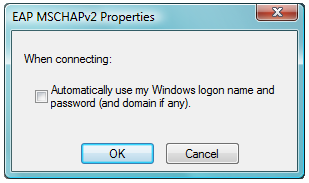
- Untick Automatically use my windows password ...
- Click OK until you return to the
Manually connect to a wireless
network window
- Click on Connect to ...
- Select Kongu_Wifi as the network to connect to
and click Connect:
- Click on the bubble Additional information is required to connect
to Kongu_Wifi
- Type your Roll No. as the User name

-
Type
your password
- Leave the Logon Domain field blank
- Click OK and you should be
connected to the Kongu_Wifi network
- A new box will appear to You should now be connected to the Kongu_Wifi
network.
- You must configure your computer to use the
Kongu_Wifi web cache
- If you have any problems connecting to the
wireless network, please see our
- Register
your MAC address
[ top
of page ]
- Click on the wireless icon at the bottom of
your screen
- Click on Kongu_Wifi in the list of
available connections
- Click Connect
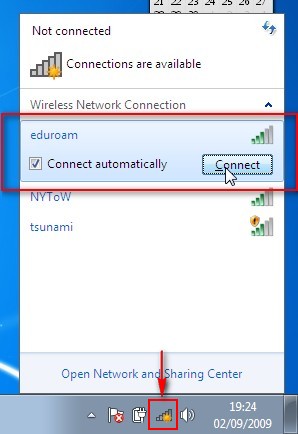
- In the Windows Security window:
-
Type your
Username and password in the
bottom box

- Click OK
- N.B if you see this warning, click Connect

- You must configure your computer to use the
University web cache
[ top
of page ]
- Turn on your AirPort card

- Click on the Apple in the upper left hand
corner choose System
Preferences
- On the Show drop down box select
Airport
- Change the By default, join:
drop down box to
Preferred
networks
- Click the Add button

- Add the Network name: Kongu_Wifi (lower case and
make sure it is spelt correctly)
- Choose the Security type: WPA-Enterprise
- Type your User name
-
Type your
password

§
Click
Continue

- You must configure your computer to use the
University web cache
- Register
your MAC address
- If you have any problems connecting to the
wireless network, please contact server room.
[ top
of page ]
If you haven't got the most recent Ubuntu-based
operating system you will need to download a program called WPA Supplicant .
You will need to use the network manager in
Ubuntu to connect to our wireless network. This webpage contains
information on how to connect Ubuntu to wireless networks.
While configuring your
wireless connection you may be asked for connection settings. We use the
settings below:
- 802.1x
- WPA Enterprise
- TKIP
- PEAP
- MSCHAPV2
Enter Your username
Enter Your password
Register
your MAC address
[ top
of page ]]
Students:
- Wifi Registration Form will be available at
kongu.edu
- Submit the Registration Form in the IT- PARK
Server Room and Create your user name and password.
| 
